
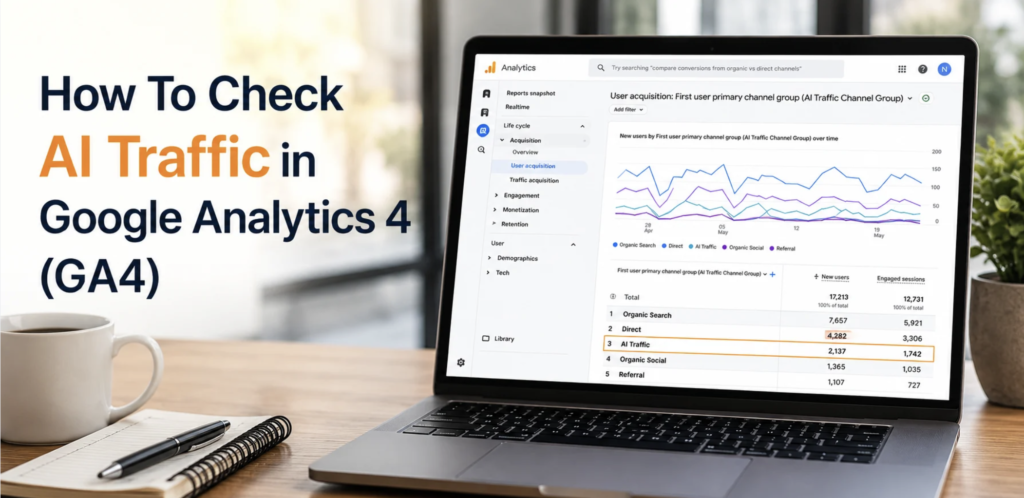
Recently, while preparing a monthly SEO report for one of my clients, I included AI traffic data. Their next question was simple: “How can we check this ourselves in Google Analytics 4?” The client wanted an easy way to monitor AI traffic without having to reach out every time they needed an update.
If you’ve tried tracking AI traffic in Google Analytics 4 (GA4), you’ve realised it isn’t straightforward. Many people rely on Exploration reports, but creating and navigating them every time can be time-consuming.
A better approach is to create a custom channel group for AI traffic. Once it’s set up, you can quickly view AI-driven traffic in your Acquisition reports without rebuilding reports every time.
GA4 now includes a built-in AI Assistant channel in the Default Channel Group. This channel can automatically identify traffic from recognised AI assistants, making it easier to monitor AI-driven visits without creating a custom channel group for those recognised sources.
Source: Google Analytics
In this guide, I’ll walk you through the complete setup.
Step 1: Sign in to Google Analytics 4
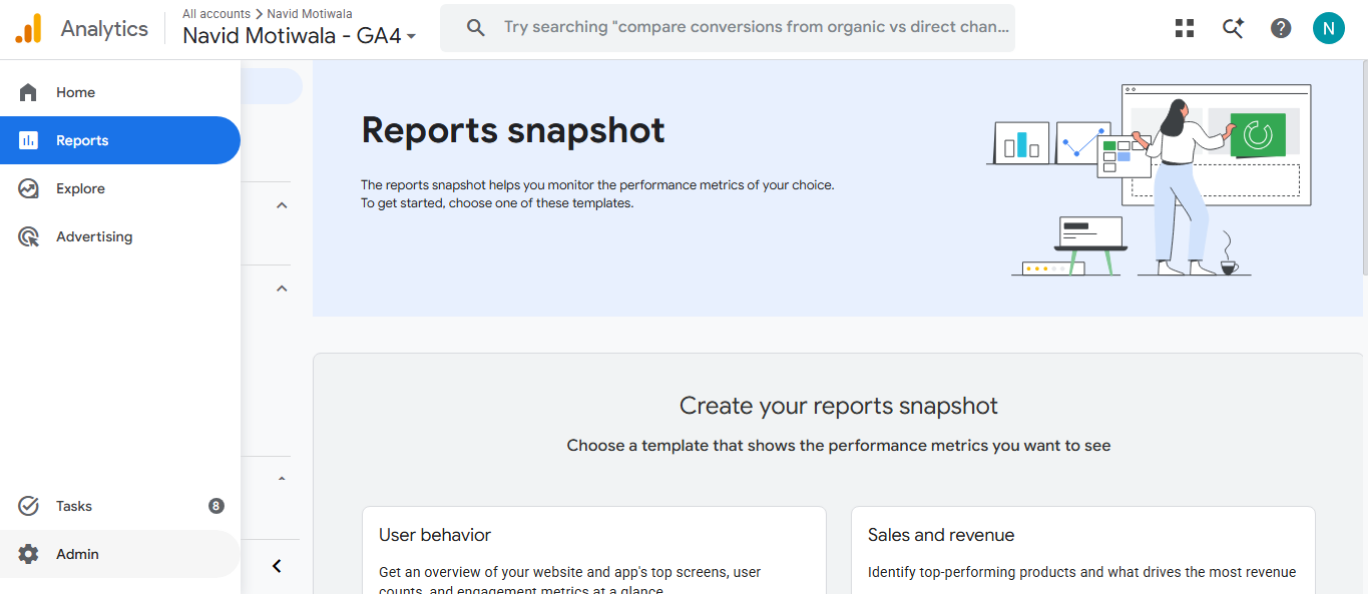
Sign in to your Google Analytics account and select the GA4 property where you want to track AI traffic.
Step 2: Create a Custom Channel Group
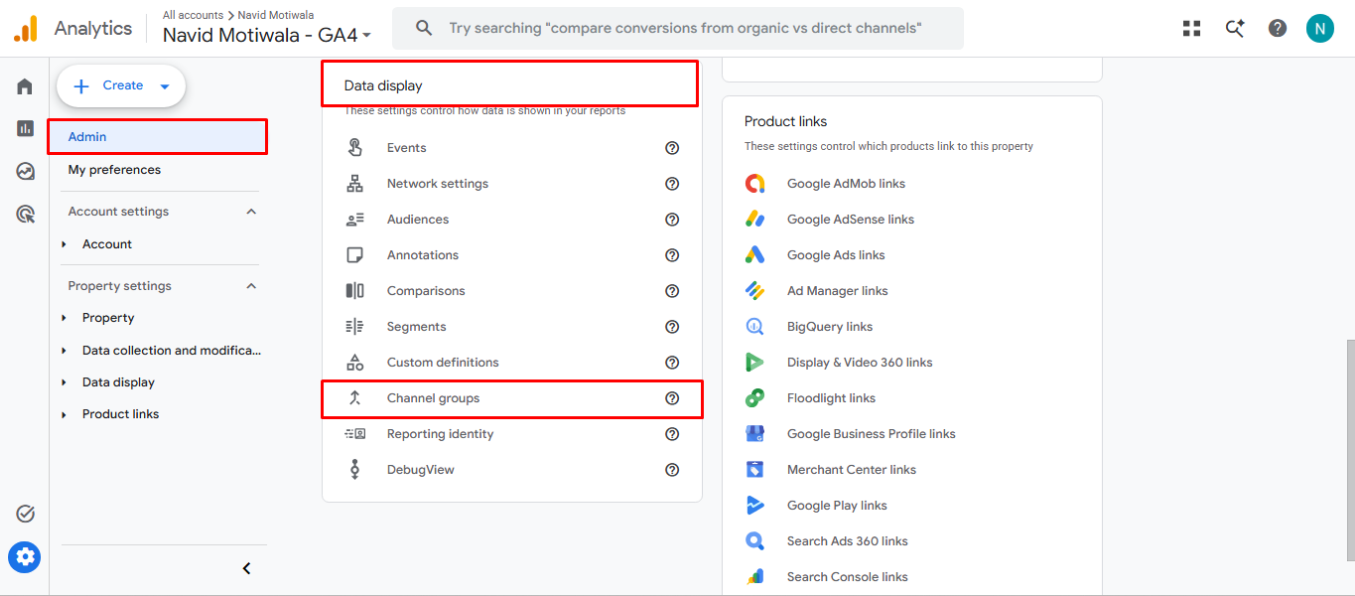
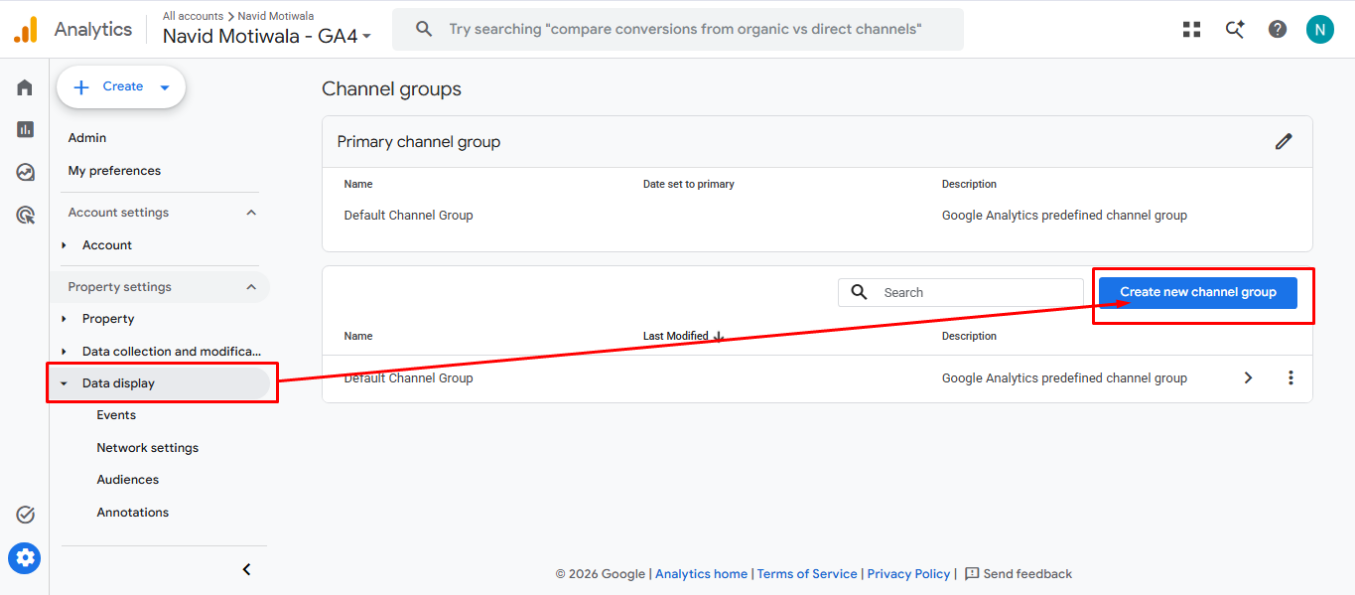
From the left-hand menu:
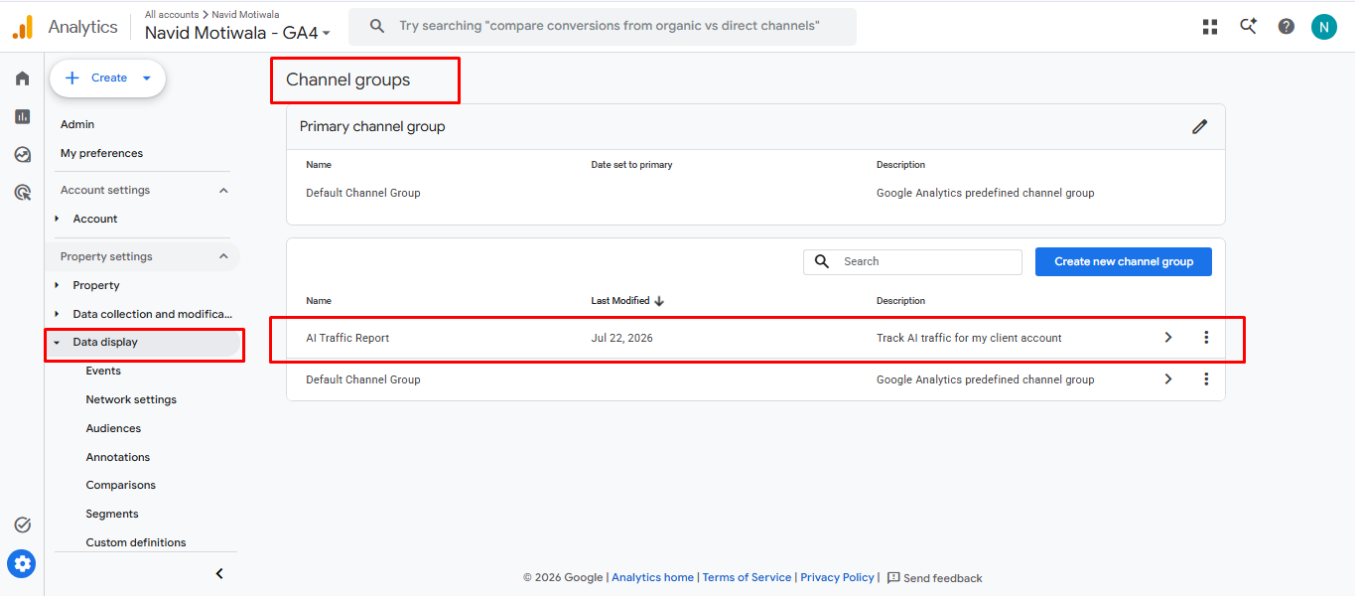
Admin – Data Display – Channel Groups
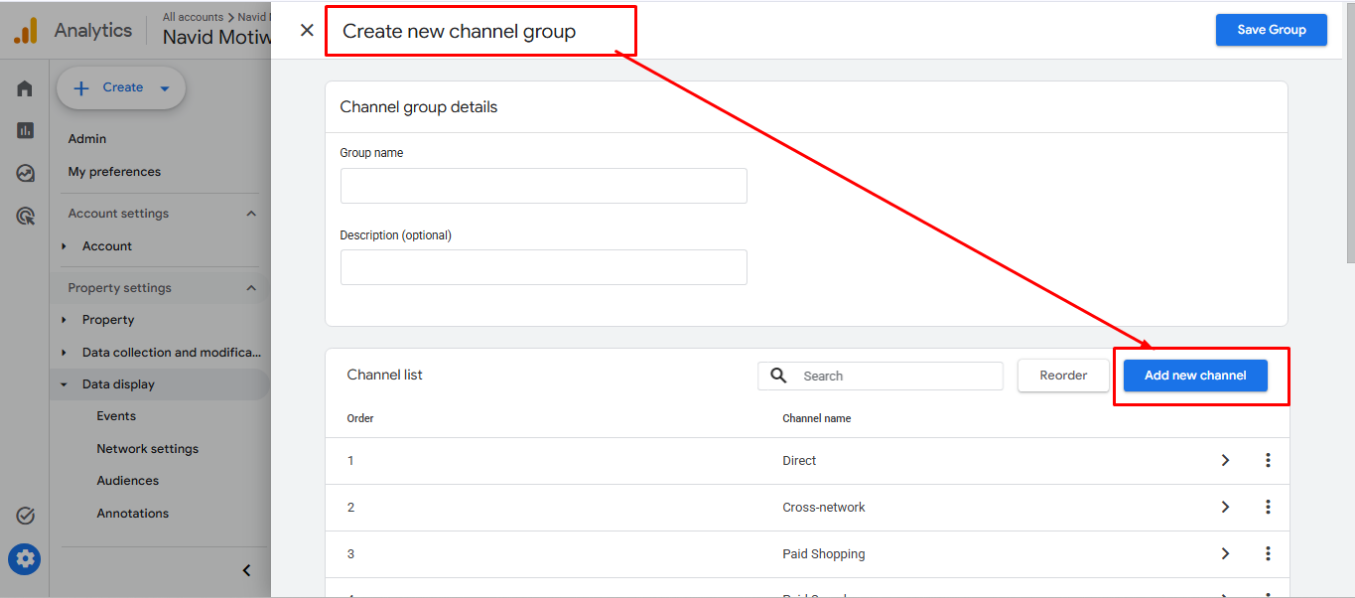
Click Create new channel group.
Step 3: Add a New Channel
On the next screen, click Add new channel.
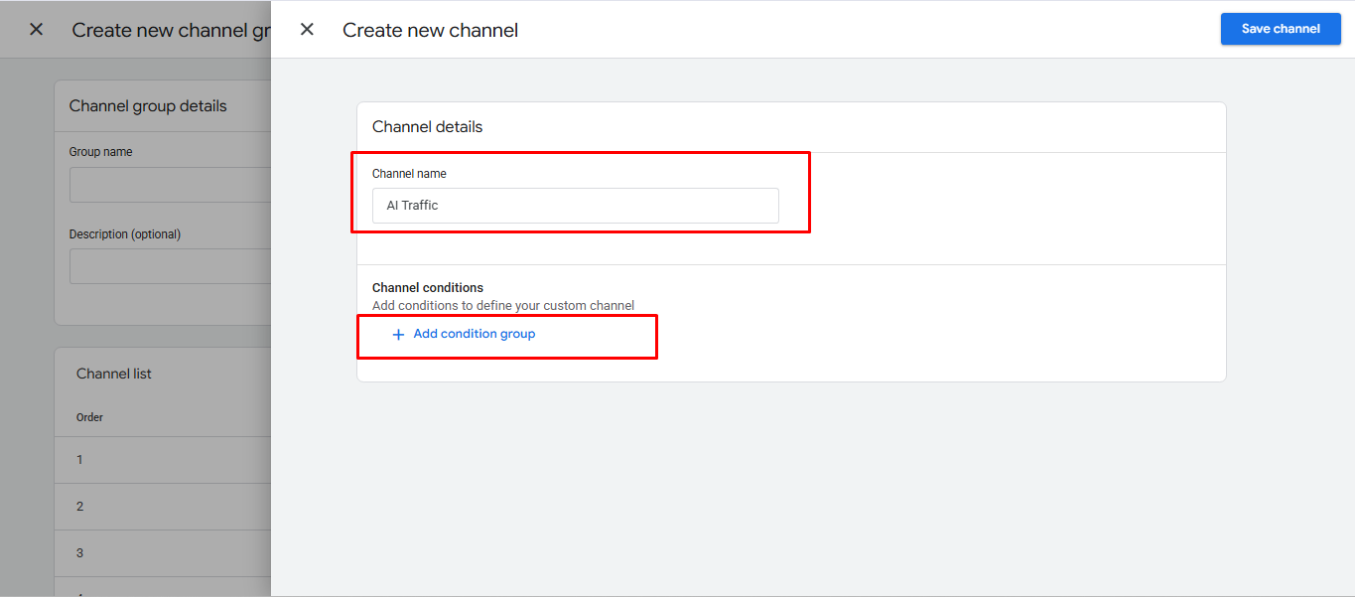
Step 4: Name Your Channel
Enter a name for your new channel.
For example:
Channel Name: AI Traffic
Next, click Add condition group.
Step 5: Add AI Referral Sources
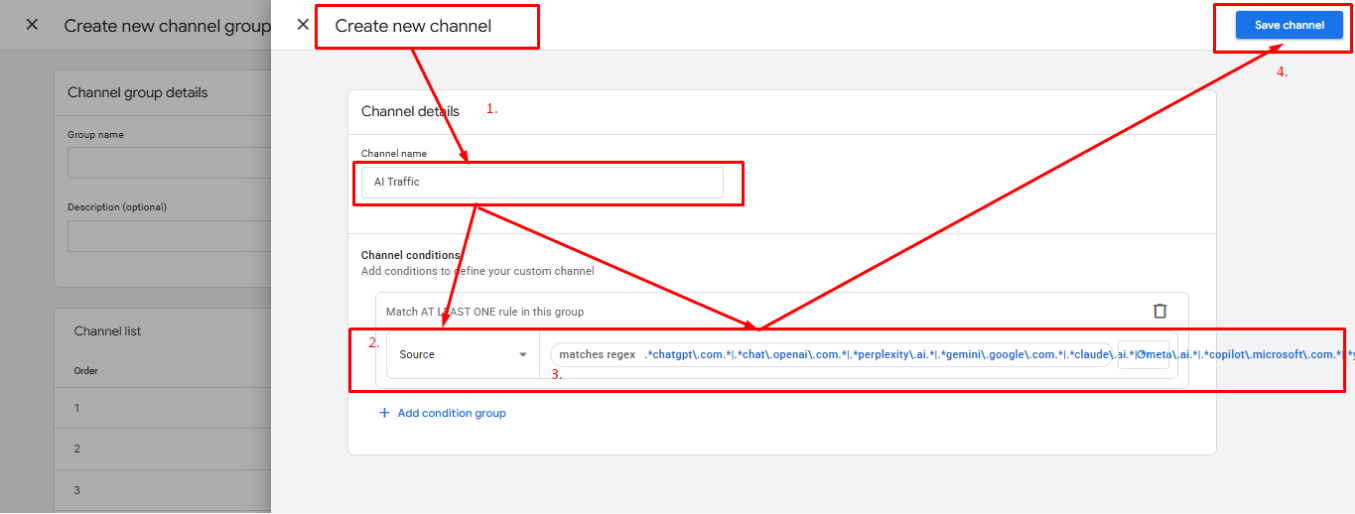
Inside the condition group:
- Select Source
- Choose Matches regex
- Paste the following regular expression, which is designed to match known AI referral domains. Before publishing, validate the regex carefully to ensure it only matches the intended referral hosts and doesn’t unintentionally classify unrelated domains.
(^|\.)chatgpt\.com$|(^|\.)chat\.openai\.com$|(^|\.)perplexity\.ai$|(^|\.)claude\.ai$|(^|\.)grok\.com$|(^|\.)deepseek\.com$|(^|\.)mistral\.ai$|(^|\.)openrouter\.ai$|(^|\.)gemini\.google\.com$|(^|\.)copilot\.microsoft\.com$
Important: Review the regex periodically as new AI assistants emerge and existing platforms update how they send referral information. Keeping the domain list up to date will help maintain accurate reporting over time.
Once you’ve added the regex, click Save Channel.
Step 6: Save the Channel Group
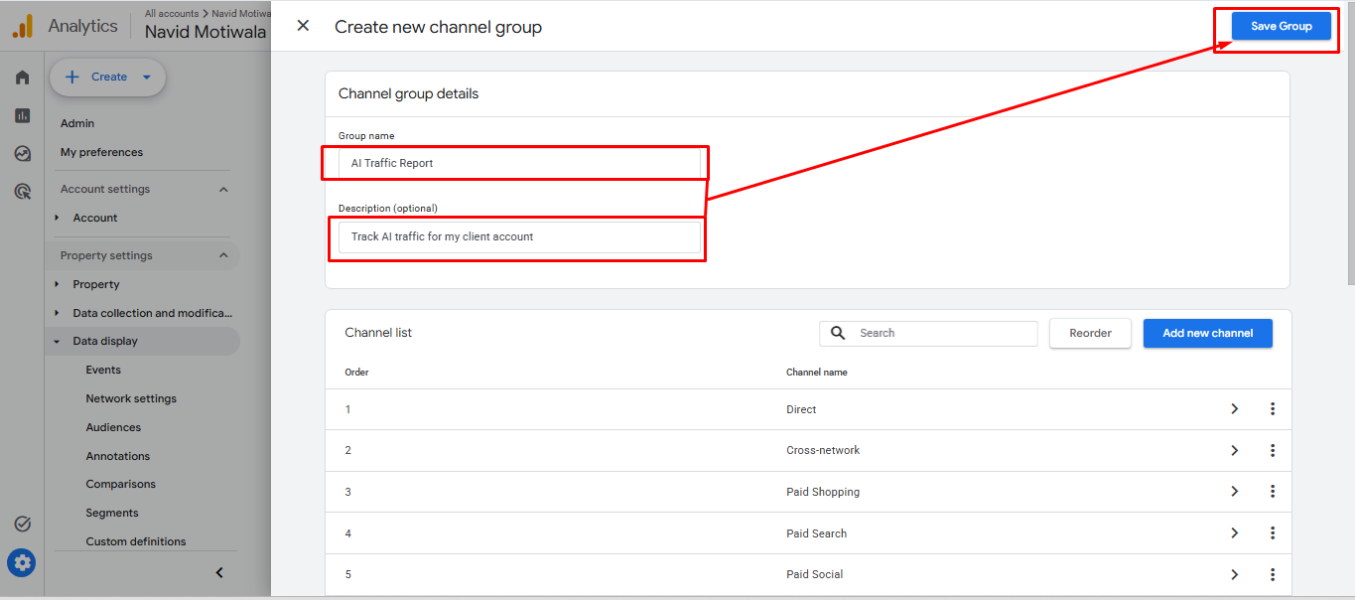
Now enter the details for your channel group.
For example:
Group Name: AI Traffic Report
Description: Track AI traffic for the client account.
Before saving the group, place the AI Traffic channel above the Referral channel so that matching AI referrals are classified correctly.
Source: Google Analytics
Click Save Group to finish the setup.
Common Implementation Mistakes to Avoid
Even if the channel group is configured correctly, a few common mistakes can prevent AI traffic from appearing as expected:
- Using the wrong dimension, such as Medium instead of Source, when defining the channel rules
- Using overly broad regex patterns that unintentionally match unrelated referral domains
- Publishing the channel group without validating it against your existing referral data
- Expecting every AI platform to pass referral information consistently. Some visits may still appear as Direct traffic
- Assuming the regex will remain accurate indefinitely without periodic updates
How Many Channel Groups Can You Create in GA4?
Free Version of GA4
If you’re using the free version of Google Analytics 4, you can create:
- One default channel group provided by Google and cannot be deleted
- Up to two custom channel groups
- Up to 50 channels within each custom channel group
For example, you could create one channel group for AI traffic and another for Social Media traffic.
GA4 360
If you’re using GA4 360, you can create:
- Up to five custom channel groups
- Up to 50 channels within each group
Step 7: View Your AI Traffic
Once your custom channel group is created:
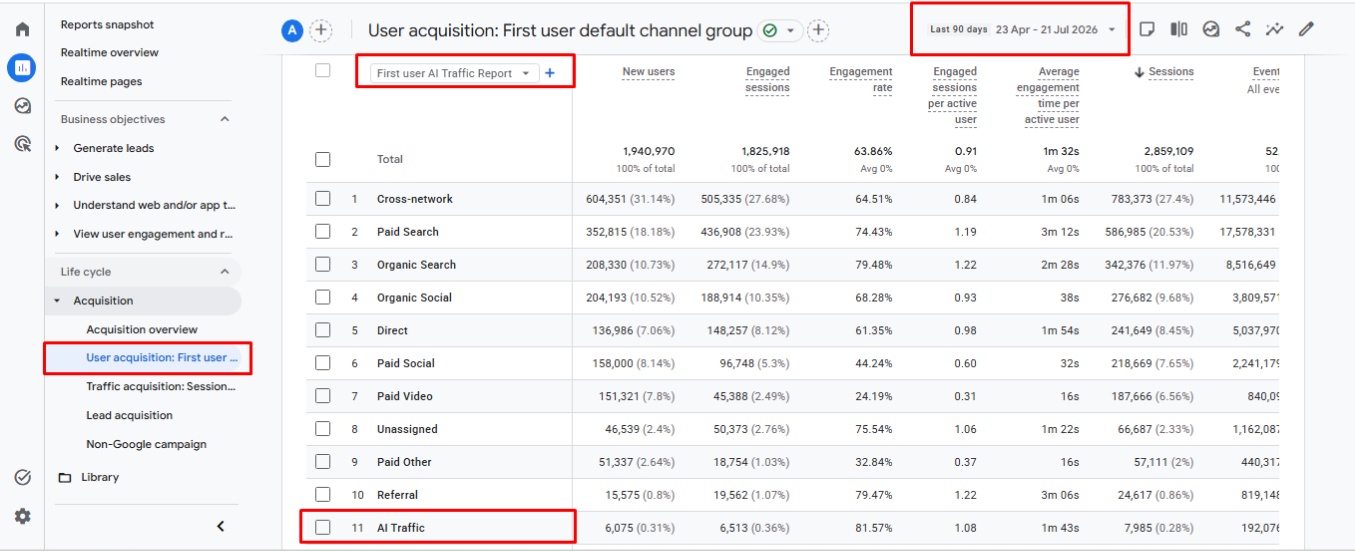
- Go to Reports
- Open Acquisition
- Click User acquisition
- Select your preferred date range
- Change the primary dimension to your custom channel group
You will now be able to see traffic coming from AI platforms such as ChatGPT, Perplexity, Claude, Grok, DeepSeek, Mistral, OpenRouter, Gemini, Copilot, and other AI assistants included in your regex.
Make sure the platforms mentioned here match the domains included in your regex. If you add or remove AI platforms from the regex, update this list accordingly.
Note: This channel group tracks AI referral traffic based on the referral domains included in the regex. Not all AI platforms consistently pass referral information, and referral behaviour may change over time. As new AI tools emerge and existing platforms update their infrastructure, it’s recommended to periodically review and update the domain list to maintain accurate reporting.
Limitations of This Approach
While a custom channel group provides a simple way to monitor AI traffic, it’s important to understand its limitations:
- It only tracks referral traffic from the AI domains included in your regex
- Some AI platforms or mobile apps may remove referral information before the user reaches your website
- Users who copy and paste URLs from AI tools may appear as Direct traffic rather than AI referrals
- Referral domains and platform behaviour may change over time, requiring regular maintenance of your regex
- This approach measures AI referral traffic and should not be considered a complete measure of all AI-influenced visits
Troubleshooting AI Traffic Reporting
If AI traffic isn’t appearing in your reports, check the following:
- Confirm that AI referrals exist in your GA4 property under the Acquisition reports
- Verify that the regex has been entered correctly without formatting errors
- Ensure you’ve selected the correct custom channel group when viewing your reports
- Check whether the AI platform passed referral information for the visit
- Review and update your regex regularly to include new AI platforms as they become available
Conclusion
Tracking AI traffic in Google Analytics 4 doesn’t have to be complicated. Once you’ve created a custom AI channel group, you can monitor AI referral traffic alongside your other acquisition channels without relying on Exploration reports every time.
If you’re regularly reporting on SEO performance or measuring the impact of AI search, this setup can save time and make your reporting much easier.
Remember that this setup measures AI referral traffic rather than every visit influenced by AI. As AI platforms continue to evolve, regularly reviewing your channel group and updating your regex will help ensure your reporting remains accurate and reliable.
Author Bio:
Navid Motiwala Coffee in one hand, Search Console in the other. At LS Digital, Navid spends his days helping brands climb search results through technical SEO, content strategy, keyword research, and AI search. He believes rankings are earned, not found, and every drop is a puzzle worth solving.